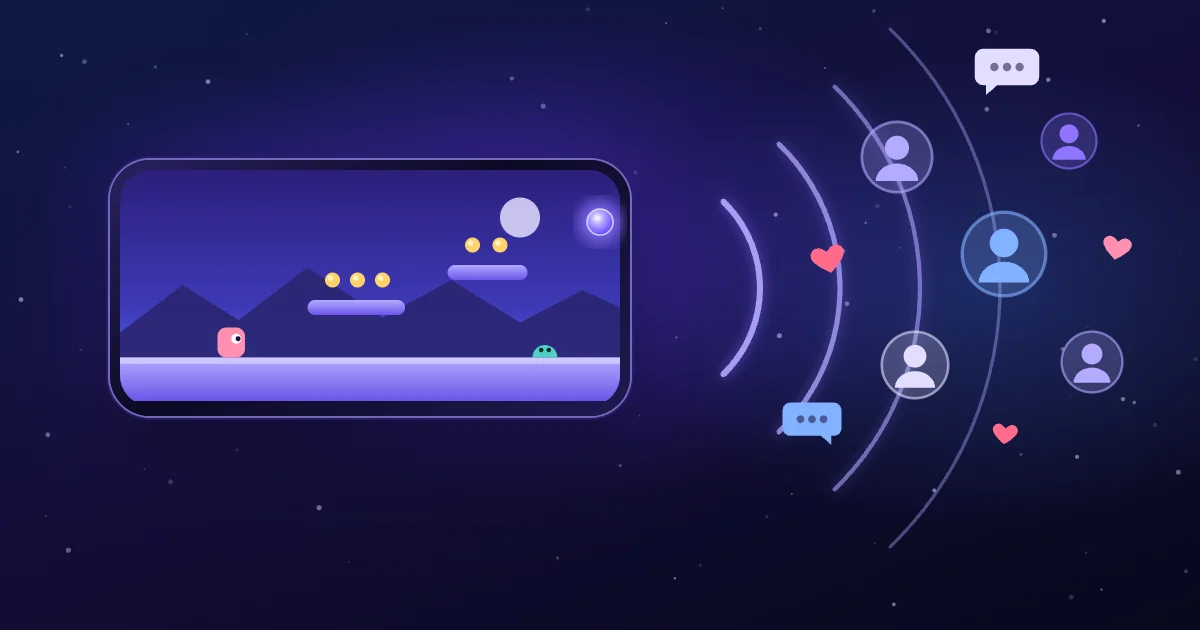
Streaming a mobile game should not take a pile of extra tools. In OXO, the bubble on your game screen is the button that starts your stream.
Twitch streaming is Android only for now. See the end of this post for iOS
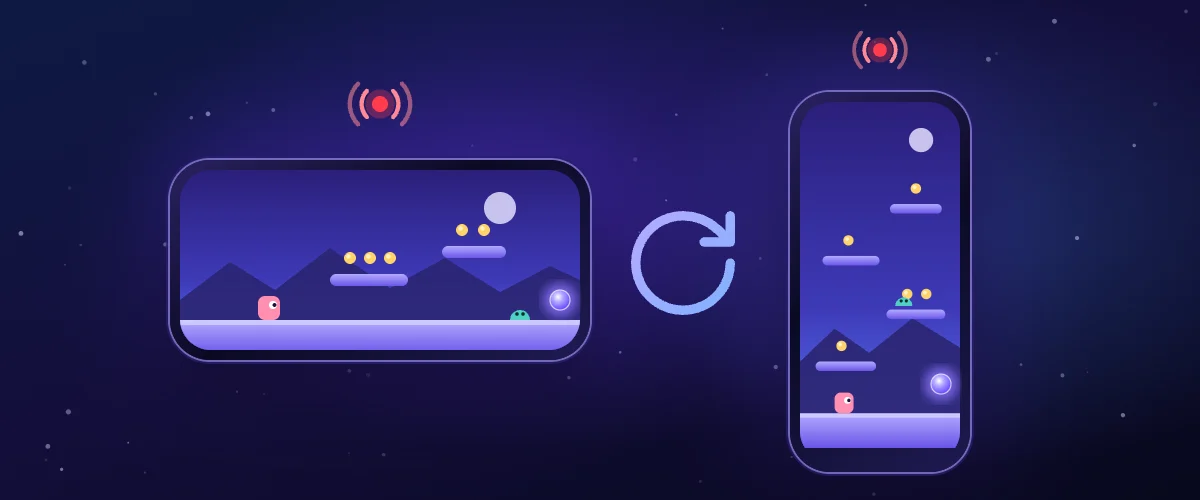
From the bubble on your game screen, OXO streams to Twitch in one tap. You can stream in landscape or in portrait.
To let friends watch you play inside OXO, there is a different feature: Room.
Go live in three steps, without leaving your game
The bubble on your screen while you play is where your stream starts. Before you go live, sign in to your OXO account.
Going live takes three steps:
- Tap the bubble, then choose Live.
- Check the title, the microphone and the camera, then tap Go live.
- The first time, OXO asks you to link your Twitch account. On the Twitch page, tap Activate, then Authorize. You come back to OXO and the stream starts.
When you go live, your phone may ask whether to allow screen recording. Tap Allow. Your viewers see your whole phone screen.
You only link your Twitch account once. Next time, OXO fills in the settings from your last stream. After you tap Go live, a 3-second countdown runs, and then your stream starts.
Live streaming needs a phone with Android 10 or later.
Landscape or portrait, both work
Your stream has three orientation options: Auto, Landscape and Portrait. The default is Auto. It sends the orientation your phone has when the stream starts.
Portrait suits viewers who watch on their phones. It also suits games that you play upright.
For video quality, 720p is free. 1080p is an optional extra with a subscription. You can stream without a subscription.
A stream is for everyone, a Room is for friends
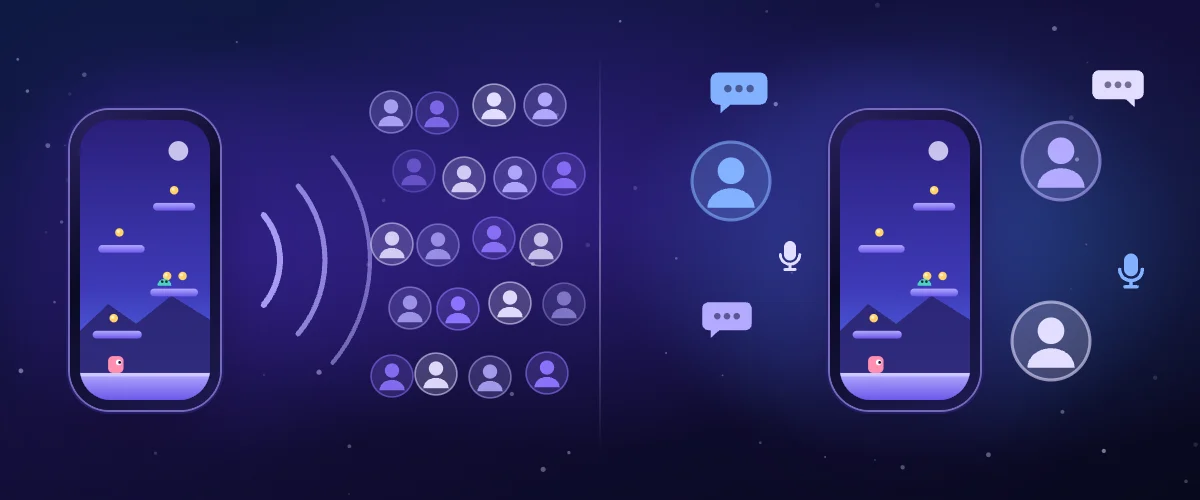
A stream sends your game screen to Twitch. Viewers watch on Twitch. It is the right choice when you want more people to see you play.
A Room lets you invite friends to watch you play inside OXO. You can talk by voice, chat by text and turn on your camera. It is the right choice when you play together with friends. We will cover Rooms in full in a later post.
iOS cannot stream to Twitch yet
Up next
[Android] Import your games, launch in one tap, resume where you left off: 3 steps to get started