Do you need a Twitch or YouTube channel to let friends watch you play? No. Open a Room in OXO, and your friends can see your screen.
Works on Android and iOS. Each section notes where the two differ
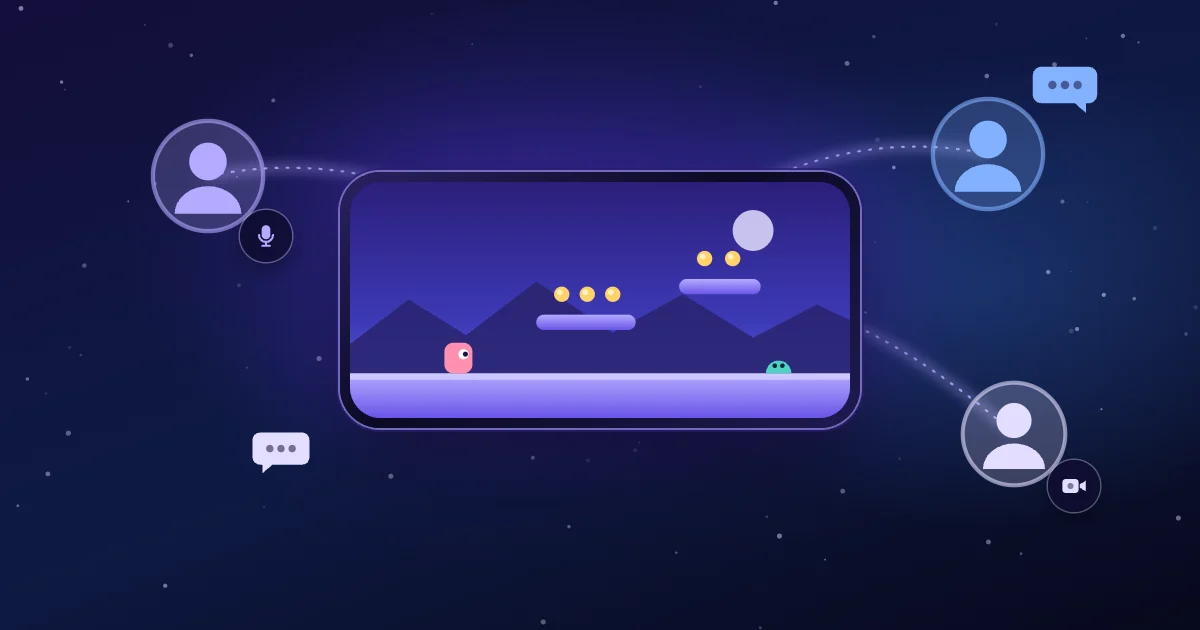
Rooms are a new feature in OXO. You share your game screen with friends. Everyone can chat by text, talk by voice and turn on their camera.
There are two kinds of Room: friends rooms and public rooms. Friends rooms are free. Public rooms are a Pro feature.
To stream your game to Twitch instead, see our live streaming post.
A friends room lets in only the people you invite
A friends room belongs to you and the friends you invite. Strangers cannot see it or find it.
When you open the room, pick the OXO friends you want to invite. Your friends tap the notification to join. If they miss it, they can join from the top of the Chat page while the room is open.
Everyone in the room can talk and turn on their camera. Friends rooms are free and hold up to 2 friends. With Pro, they hold up to 4.
To open or join a room, both of you need to sign in to an OXO account and be OXO friends.
A public room needs no invite, so any OXO player can watch
A public room needs no invitation. Other OXO players can find your room under OXO Live Now on the home screen, or on a game’s page.
By default, viewers can only type and send reactions. You decide who can talk.
Public rooms are a Pro feature. Up to 4 viewers can watch at once, and you can set a lower limit. Viewers do not need Pro. They only need to sign in to an OXO account.

Need to step away? Tap Be right back
Before you answer a message or take a call, tap Be right back. Your viewers only see a break card. They cannot see your screen.
Your microphone turns off too. It turns back on when you return to the game.
On Android, the room switches to Be right back on its own when you open another app or turn off the screen. When a friend joins, OXO also turns on Do Not Disturb, so notifications do not pop up. The first time, you need to allow Do Not Disturb access.
On iPhone, you tap Be right back yourself. The room shows your whole screen, including notifications and messages. Turn on a Focus before you open a room.

Open a room in OXO Play or in any other game
On Android, the room lives in the bubble. Whatever game you play, open the bubble to find the microphone, the chat and who is watching. Rooms on Android need a phone with Android 10 or later.
On iPhone, open a room with Go live on the OXO home screen. In OXO Play, the room card is in the game menu.
When you play other games on iPhone, the chat floats over the game in Picture in Picture. The pause button in the middle is Be right back.
Choose how your room looks
In Room look, you can change what your friends see, for free:
- Alert cards: a card pops up when a friend joins for the first time, turns on a camera or leaves. You choose which events show a card and how many seconds it stays.
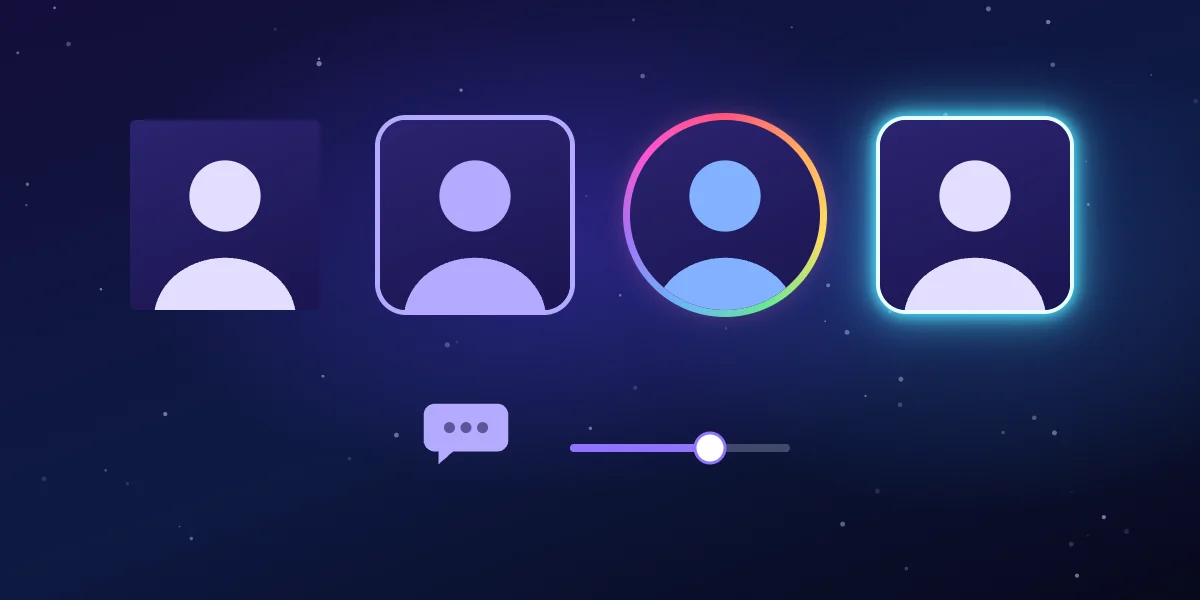
- Friends’ cameras: change the size, line them up in a row or a column, and pick square or rounded corners.
- Chat window: set the text size and the background opacity, and let old messages fade out.
With Pro, alert cards also come in four themes: Neon, Pixel, Esports and Cute. You can move them to the top of the screen or write your own text. Cameras can be round, with an RGB flow or neon border.